
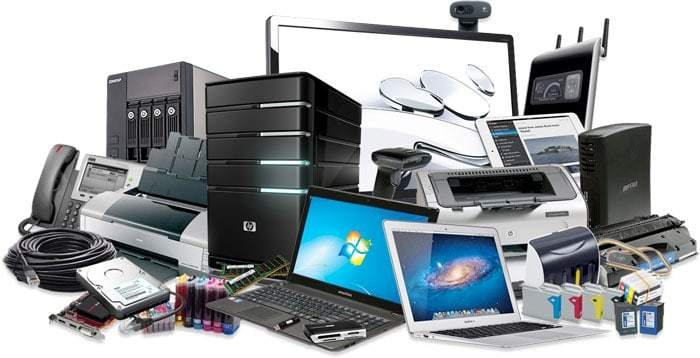
Essential computer accessories, such as keyboards, mice, external drives, and monitors, are tools that extend the functionality and comfort of your desktop or laptop.
Must have computer accessories
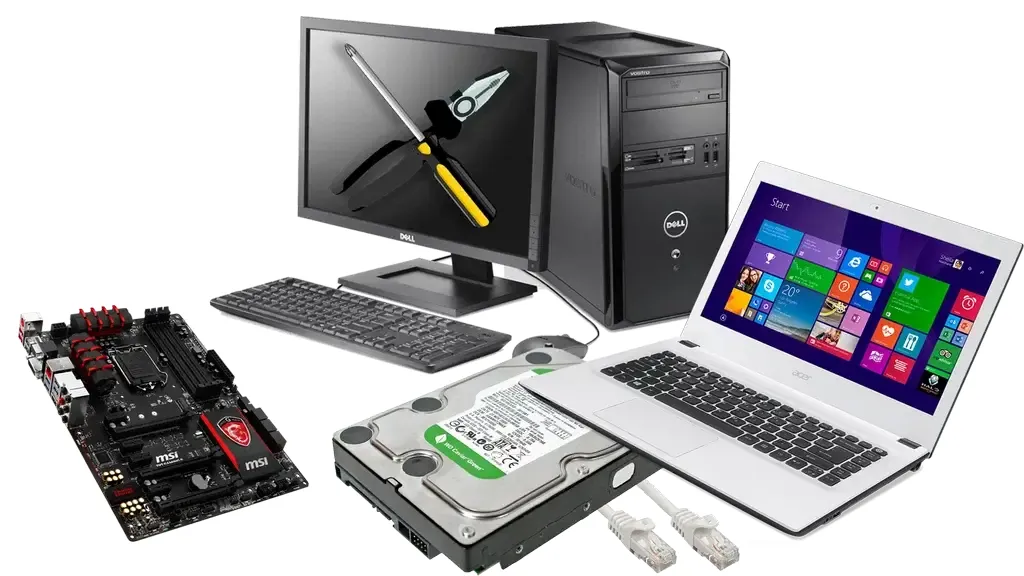
Most users need a mix of input and output devices to build a productive desk setup. The following table outlines common options and what they’re best suited for in a home or office environment.
| Accessory | Best for | Example |
|---|---|---|
| Mechanical keyboard | Typing comfort | Tactile switch board |
| Wireless mouse | Precise navigation | Optical sensor mouse |
| External monitor | Extending display space | 27-inch 4K screen |
| External drive | Data backup | 2TB solid-state drive |
| USB-C hub | Connecting multiple ports | Seven-port docking station |
Mechanical keyboards
A mechanical keyboard uses individual physical switches under each key to provide tactile feedback and faster response times. It suits writers, gamers, and office workers who spend hours typing each day.
- Reduces finger fatigue through consistent switch resistance.
- Increases typing accuracy with distinct physical key travel.
- Offers long-term durability compared to standard membrane boards.
If you’re a heavy typist, choose a board with tactile switches; if you play fast-paced games, linear switches are better.
Wireless mice
A wireless mouse removes cable clutter from your desk by using a USB dongle or Bluetooth to communicate with your machine. It suits travelers and those who prefer a clean, minimalist workspace.
- Allows for fluid, unrestricted movement across large desk mats.
- Simplifies transport by eliminating the need to coil cables.
- Provides adjustable sensitivity settings for different screen resolutions.
You must replace or recharge the batteries occasionally, which is a trade-off for the convenience of a cable-free experience.
External monitors
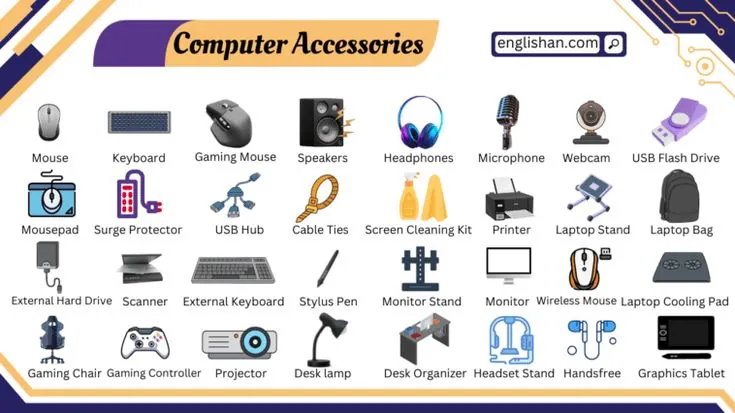
An external monitor provides extra screen real estate for multitasking and viewing documents side-by-side. It suits students, designers, and anyone who finds a laptop screen too small for intensive work.
- Improves workflow by displaying multiple windows simultaneously.
- Reduces neck strain by positioning the screen at eye level.
- Enhances color accuracy for photo or video editing tasks.
This equipment requires a compatible video port on your computer. According to the Occupational Safety and Health Administration, positioning your monitor at arm’s length helps prevent eye strain and muscle fatigue.
External hard drives
An external hard drive acts as a secondary storage location for your photos, documents, and system backups. It suits users who keep large video files or those who need an offline copy of important data.
- Protects data against internal drive failure.
- Transfers large files between machines without internet access.
- Expands total capacity without opening the computer chassis.
If you have a laptop with limited internal storage, an external drive is the most cost-effective way to add space.
Other essential peripherals
- USB-C hubs: These allow you to connect older USB-A devices, HDMI cables, and SD cards to modern laptops that only feature one or two ports.
- Webcams: An external camera offers better resolution and lighting control than most built-in laptop lenses for video meetings and remote presentations.
- Headsets: A dedicated pair of headphones with a noise-canceling microphone improves audio clarity during calls while blocking out background noise in busy rooms.
How to choose your accessories
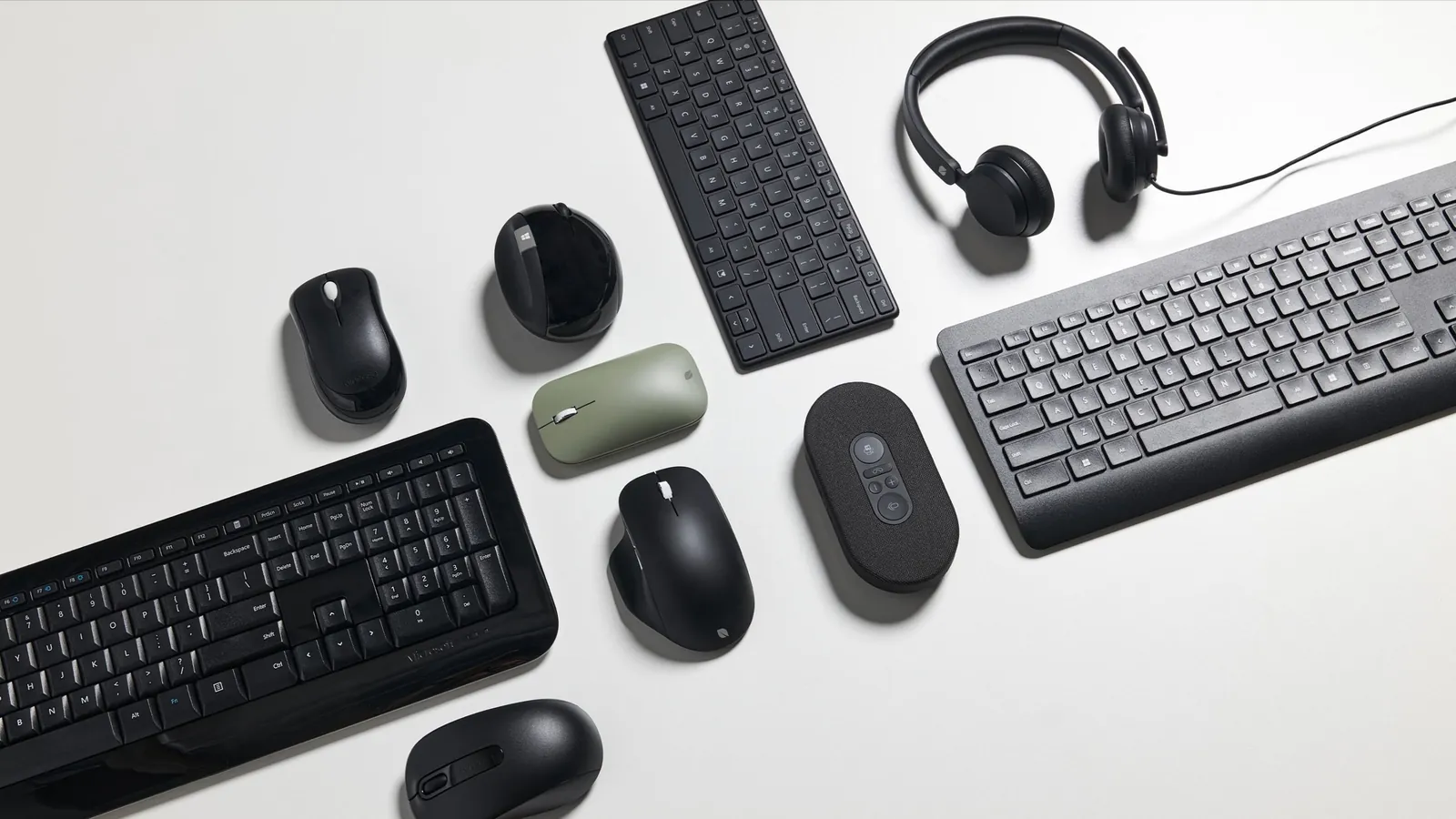
Choose accessories based on your daily tasks. If you use a laptop, prioritize a USB-C hub to link your tools. If you write often, prioritize a mechanical keyboard for wrist comfort.
Related guides
- Apple Smartwatch Guide: How to Setup and Use Your Device
- Accessories Guide: How to Style Bags, Belts, and Jewelry
- Accessories: Essential Tech Accessories for Everyday Use
Frequently asked questions
Can I use a wireless mouse with any computer?
Yes, you can use a wireless mouse with any computer that has a standard USB-A port for a dongle or built-in Bluetooth capabilities for a direct wireless connection.
How long do wireless mouse batteries last?
Battery life typically ranges from 3 to 12 months, depending on the model’s power efficiency and how many hours you use the device every single day of the week.
What happens if I unplug an external drive while it’s working?
Unplugging a drive during a file transfer risks immediate data corruption and potential loss of the files that were currently being moved or saved to the disk.
Is it safe to leave my computer accessories plugged in?
It’s safe to leave most peripherals plugged in, but you should disconnect external drives properly through your operating system’s eject menu before pulling the physical cable out.
Does it matter which USB-C hub I buy?
It matters because you must match the hub’s power delivery rating to your laptop’s requirements to ensure it charges properly while transferring data at the speed you need.
How often should I clean my computer accessories?
Start by connecting your keyboard and mouse to ensure they feel comfortable during use. You should expect to see an immediate improvement in your typing speed and navigation accuracy. If the devices don’t respond, check your cable connections and battery levels before seeking technical support.
Conclusion
Investing in the right gear makes your daily work feel much smoother and more enjoyable. Don’t feel like you’ve got to buy everything at once, though. Start by identifying the one piece of equipment that currently slows you down, and look for an upgrade that’ll make your desk space truly yours.